Instructors & team
Add instructors and the instructor types they hold.
What it looks like
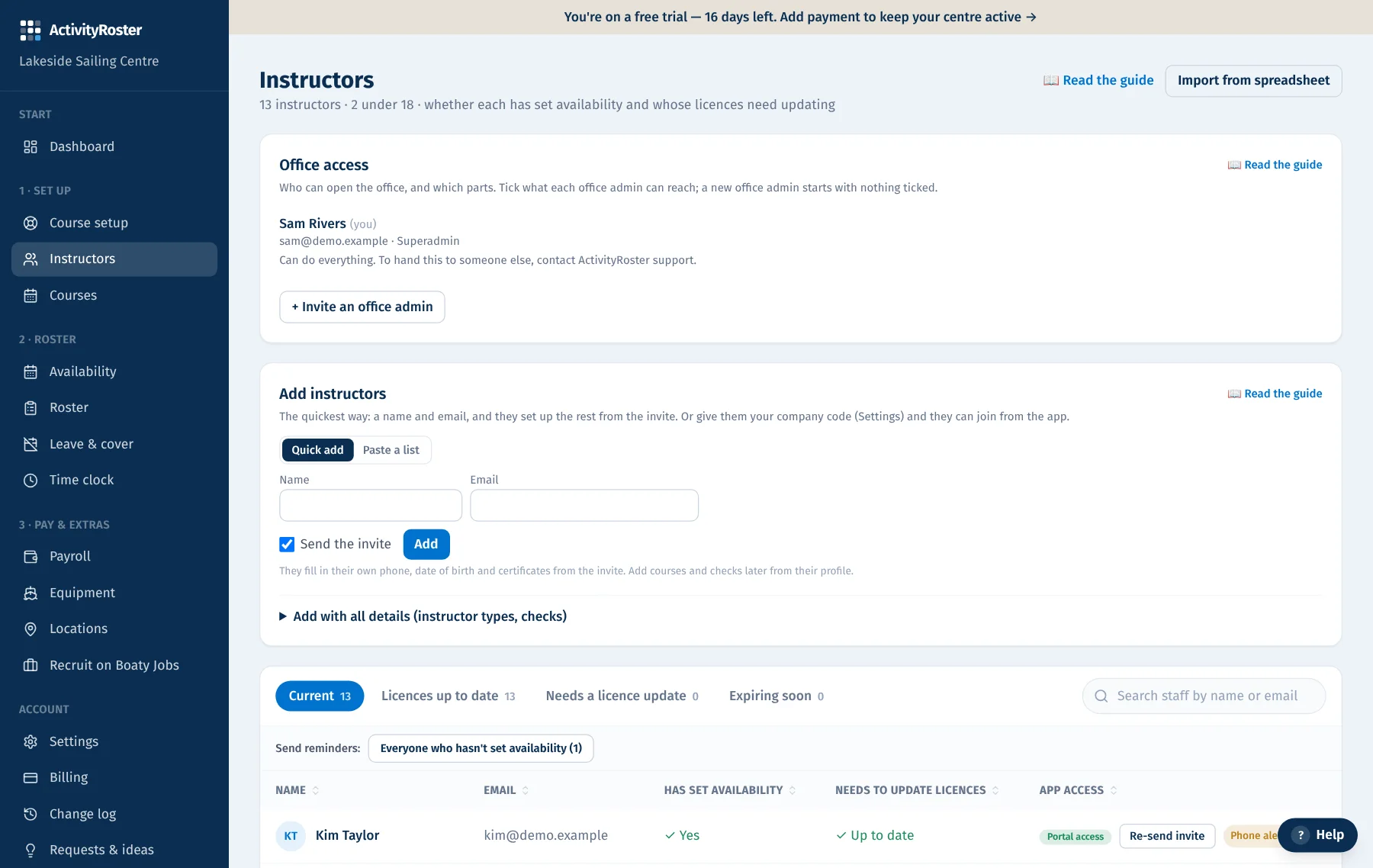
Screens from a made-up centre. Click any screen to see it full size.
The App access column shows one chip per person: Not invited, Invite sent (with when), In the app, In the app · alerts off, or No sign-up needed when the office keeps their availability. Open the chip for the invite or re-send button and a note on what the status means. Next to Add instructors, “Copy team-chat message” copies the note that tells your team the invite is real.
The Instructors tab lists everyone at your centre with their status and whether they're cleared to roster.
The quick way
Under Add instructors, Quick add takes just a name and an email, with “Send the invite” ticked: they fill in their own phone, date of birth and certificates from the invite. For the start of the season, Paste a list takes one person per line as copied from an email or spreadsheet (“Sam Jones, sam@example.org” or “Kim Lee <kim@example.org>”); it shows how many it found before you add them. People without an email are added but not invited.
Add an instructor with all details
- 1Open “Add with all details”, then enter their name and (optionally) email.
- 2Pick their employment type — employed, freelance or volunteer.
- 3Tick the instructor types they hold, as many as apply. The courses they can teach appear underneath as you tick, with an approval tick where a course needs the Principal's say-so.
- 4Save. If you gave an email, they're automatically invited to the instructor app to upload their own certs.
- 5An invite shows as “Invited today”, “Invited 3 days ago” and so on until they open it. Access to your centre only starts when the invited person signs in, so a mistyped address can't let the wrong account in.
- 6The invitation email names your centre and who sent it, and lists what to do first. If they haven't signed in a day later, they get one reminder, and nothing more. “Re-send invite” sends a fresh one and starts that day again.
Courses each person can teach
Each staff profile has the instructor types they hold as tick boxes, and the courses they can teach worked out from them (see “Instructor types & who can teach what”). This drives the checks when you roster.
Reminding people
- The list shows whether each person has set their availability and whether any licence or check needs updating.
- Press Remind on a row to send that person a notice in the app (with a phone notification) and an email: to mark when they're free, or listing the licences that are missing, expired or running out.
- “Everyone who hasn't set availability” and “Everyone who needs a licence update”, above the list, remind them all at once after you confirm.
- Each person gets at most one reminder of each kind a day, however often it's pressed. People who haven't signed up need an invite before an availability reminder can reach them; people whose availability the office keeps are never asked.
When someone leaves
Press “Mark as left” on their staff page. Before anything changes it lists the upcoming sessions they're on. Confirm, and they come off all of them, from today on; those places open up on the roster. Days they've already worked, their hours and pay lines stay as they are. Their app access is suspended, and “Bring back” restores it later (put them back on sessions by hand).