Rostering & assigning
Assign staff with place, ratio, fit and conflict checks.
What it looks like
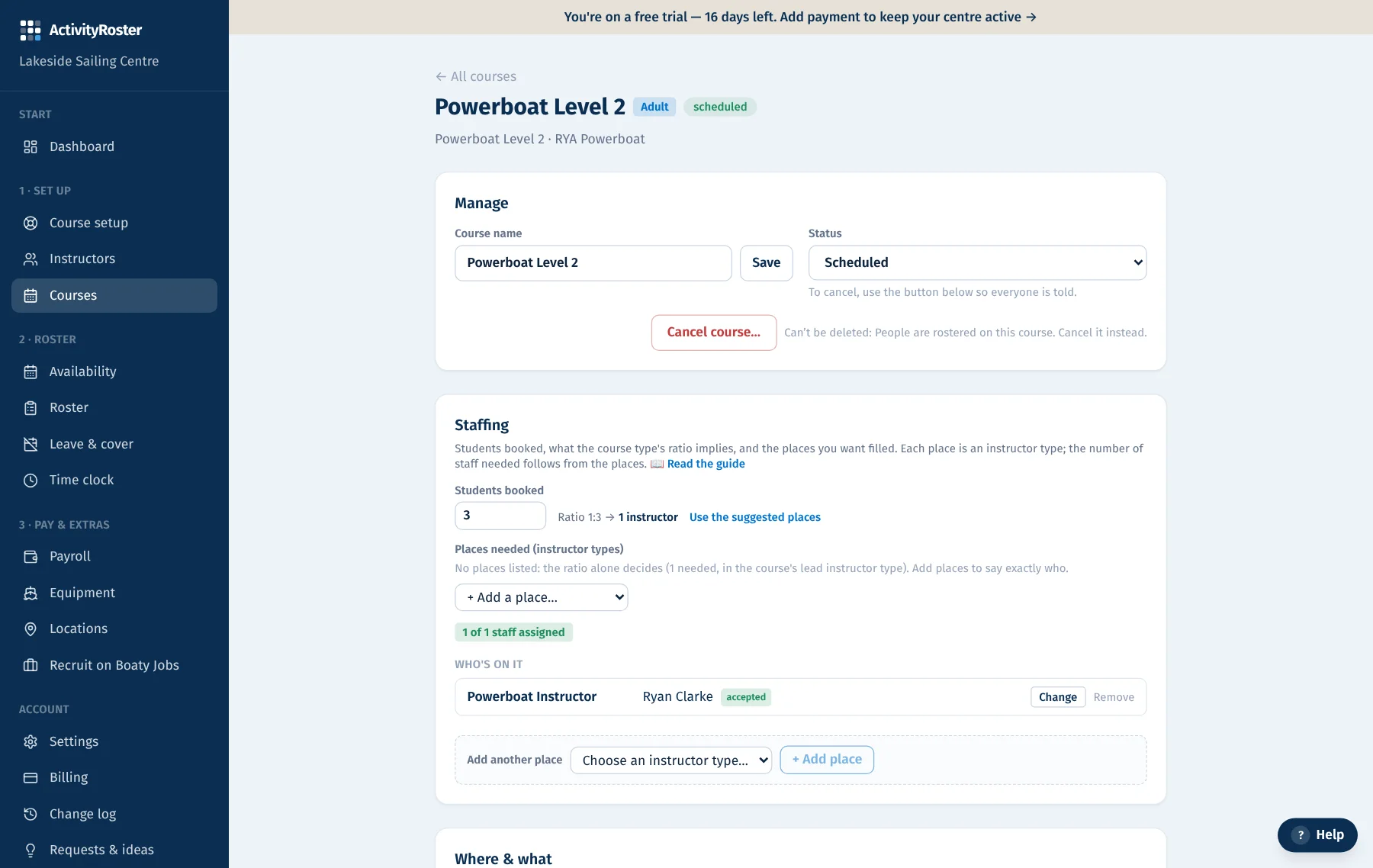
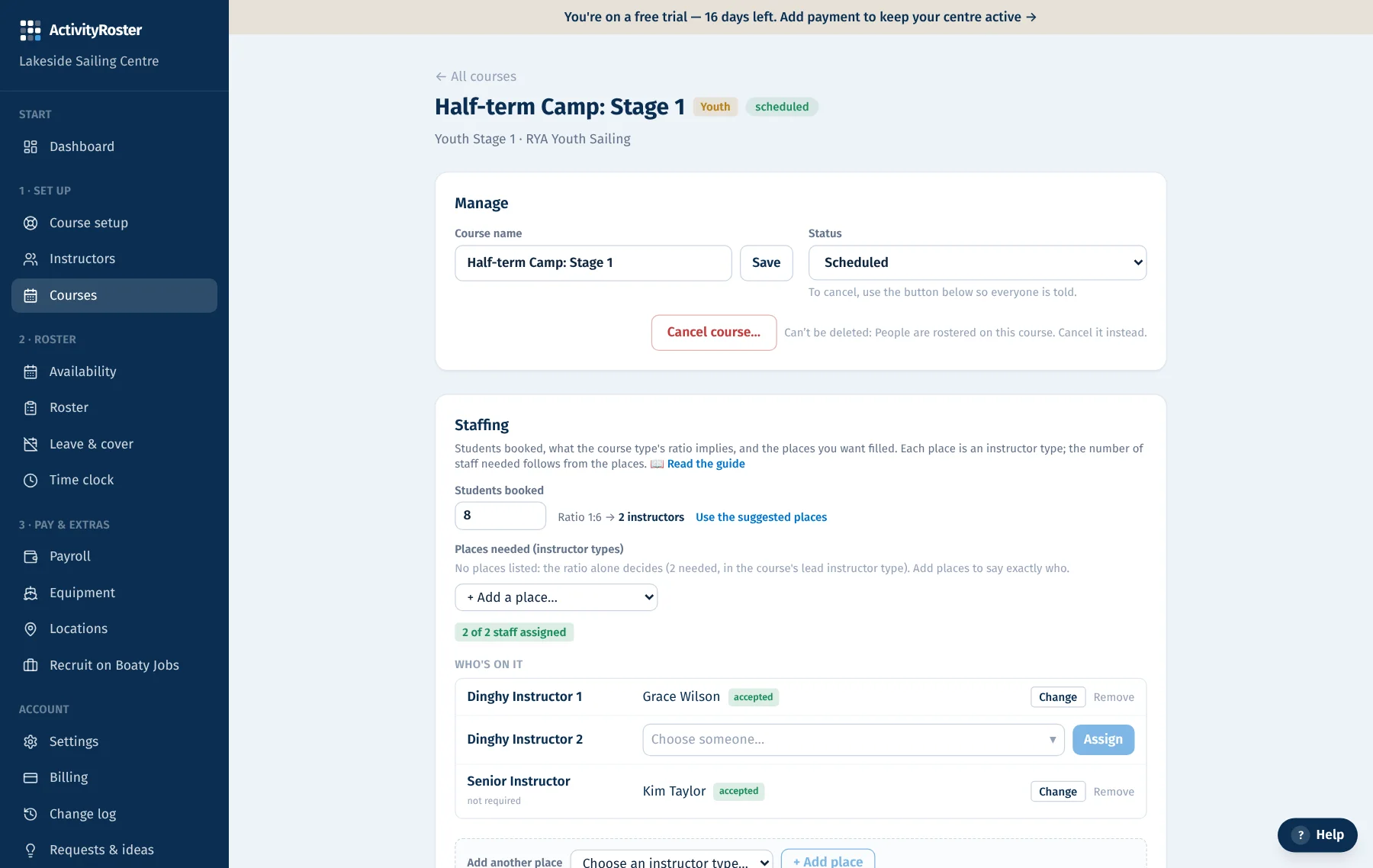
Screens from a made-up centre. Click any screen to see it full size.
Assign staff from a course (the card on the Courses page, the Edit course window, or the course's own page). Under the students booked, every place the course needs is a row: Dinghy Instructor 1, Dinghy Instructor 2, Assistant Instructor and so on, with whoever is in it on the right, a Change and Remove for each, and a picker on any empty place.
- 1Pick an instructor for a place. The list is in three groups, the same everywhere on the platform: 🟢 qualified (they fit the place and can teach the course) and free for its times, then 🟠 qualified but not free (it says whether they are on another course at that time, or said they are busy), then 🔴 not qualified or not cleared (with the reason). The three sections are shaded green, orange and red. Auto-roster picks in the same order.
- 2Assign. We check they fit the place and the course, aren't double-booked, and that the course meets its ratio. Places are listed with the higher levels first (Senior Instructor above Dinghy Instructor above Assistant Instructor).
Overrides
If the person you pick isn't cleared, is busy, or isn't qualified for the place or the course, the reason shows under their name and the Assign button turns amber and reads “Assign anyway”. Press it to put them on regardless. The override, and the checks it skipped, are recorded in the change log with who did it, and the reason stays shown beside their name afterwards.
If they are already on another course at that time you get two buttons instead: “Move here” takes them off the other course (for that day, on a multi-day course) and puts them on this one; “Keep on both” leaves them on both, with the clash recorded.
Changing the places a course needs
“Edit students & places” sets the places. Add one quickly with the “Add another place” box under the rows. If you remove a place, or lower its number, while people are in it, you're asked who comes off, with any problem (double-booked, not qualified) shown beside each name. Remove every place and the course needs no staff at all; the ratio's suggestion only applies to a course whose places were never set.
Auto-roster
“✨ Auto-roster” on the roster board asks which you want: fill the open places only (everyone already on the roster keeps their sessions), or redo the whole week (the week is worked out afresh, then saved in one go: people who keep their sessions aren't touched, and on confirmed days only the people whose shifts change are told). “Undo” beside the result, or in the Change log for two weeks, reverses only what that redo changed: it says what will change and asks first. A session changed again since the redo (by hand or another run), or one that has already happened, is left as it is. Nobody is put on two sessions that clash, whether they share a slot or just overlap in time.
Either way it fills every open place for the week in one go. Each place goes to someone who is Free for that session (then someone who said Maybe), is cleared to roster, can teach the course type and holds the place's instructor type (or a higher one on its ladder), and sessions are shared out as evenly as possible, counting what people already have that week. Nobody marked Busy is used and nothing is overridden.
If there aren't enough suitable people, it fills what it can and tells you how many places are still open; those stay marked on the board and in the problems list for you to sort by hand. Everything it does is recorded in the change log, and you can change any of it afterwards.