Certs & vetting
Track every cert and check, with expiry alerts.
What it looks like
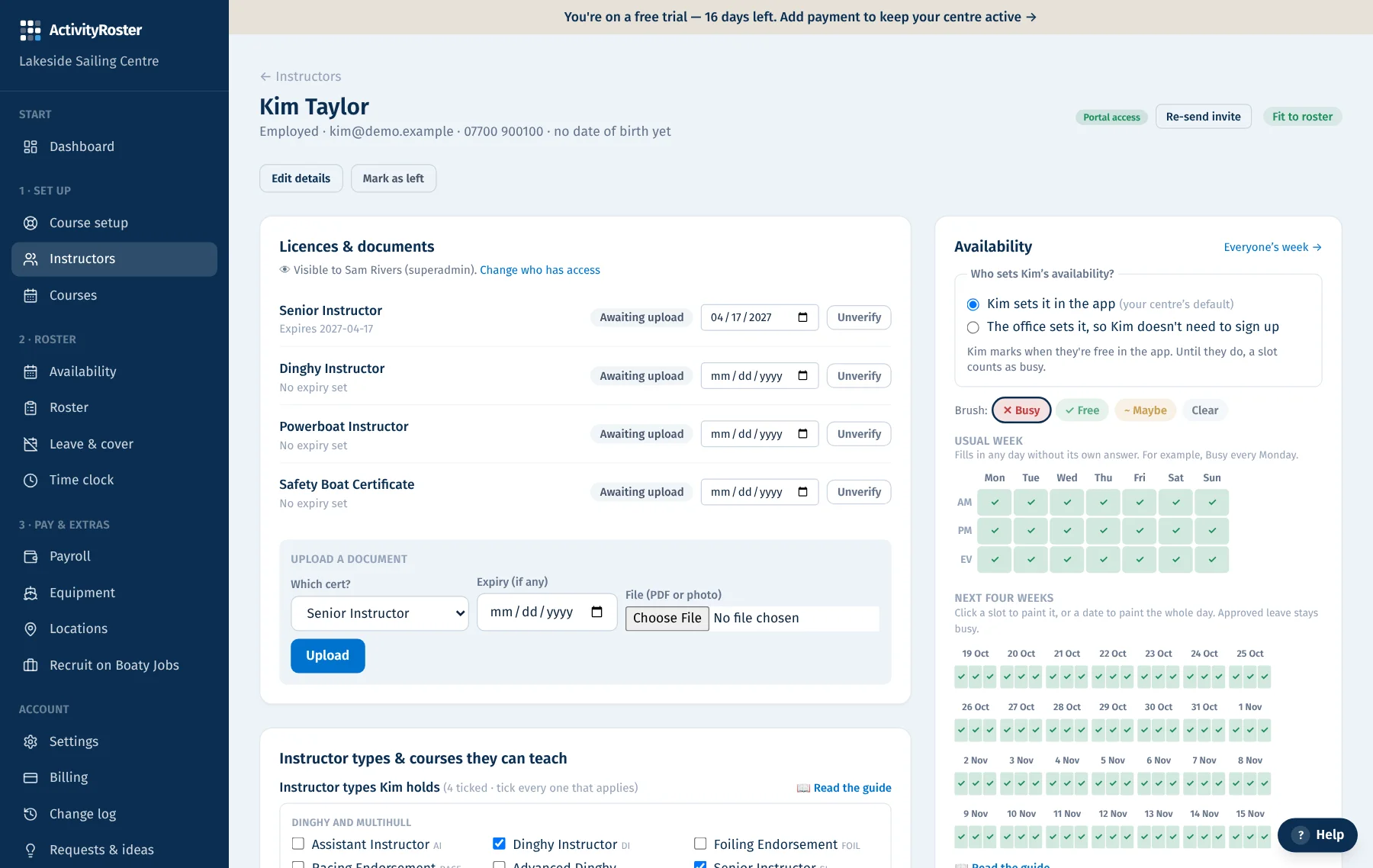
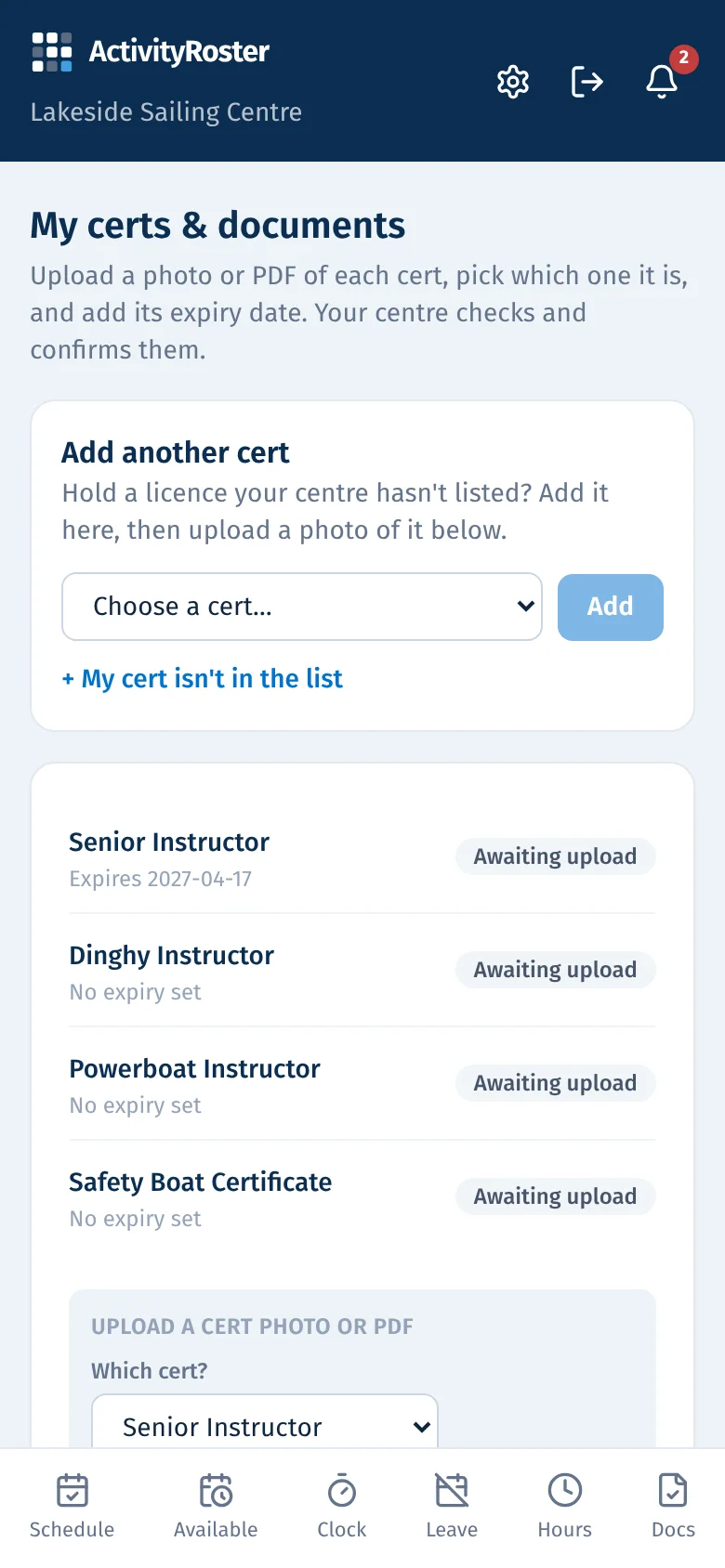
Screens from a made-up centre. Click any screen to see it full size.
Every instructor has a document area for their instructor types and certificates (ticked on their profile: dinghy, keelboat, windsurf, SUP, powerboat…) and their checks (DBS, safeguarding, first aid).
Vetting checks (DBS, PVG, AccessNI, Garda) are different: the centre records the status, the certificate number and the dates, and marks the check verified once it has seen the certificate. The certificate itself is never uploaded or stored, and the number is encrypted. That keeps the most sensitive document out of the system entirely. The built-in vetting checks are already marked this way; if you add your own check type under Settings → Checks, tick “Vetting check” and it is treated the same.
Two ways to add documents
- The instructor uploads their own: they pick the cert from a dropdown, add a photo/scan and the expiry date.
- The office uploads on their behalf and can edit the expiry, add a reference/certificate number, and mark it verified.
Expiry alerts
Anything expiring within your lead time is flagged on the dashboard and the staff list. Instructors are reminded in the app and by email, and every Monday admins get one email listing what has expired or is about to. Expired mandatory checks stop an instructor being rostered until they're renewed.
An alert needs a date. Before you confirm a roster day, the Roster page lists anyone on it with no expiry date on any of their licences, and asks you to add the dates before confirming. Most dates arrive when staff upload their own tickets after their invite.