Availability
Collect availability and see it before you build the roster.
What it looks like
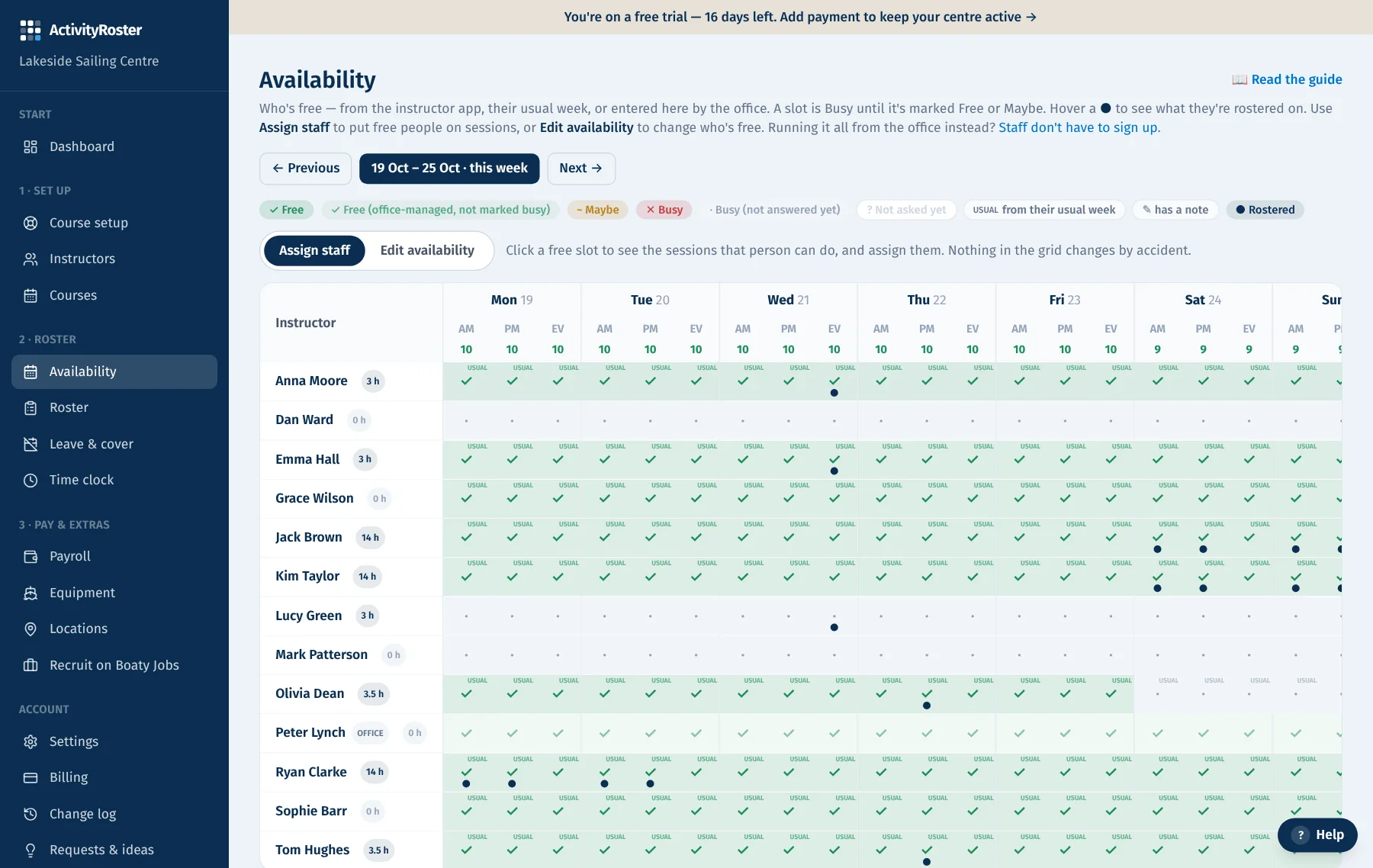
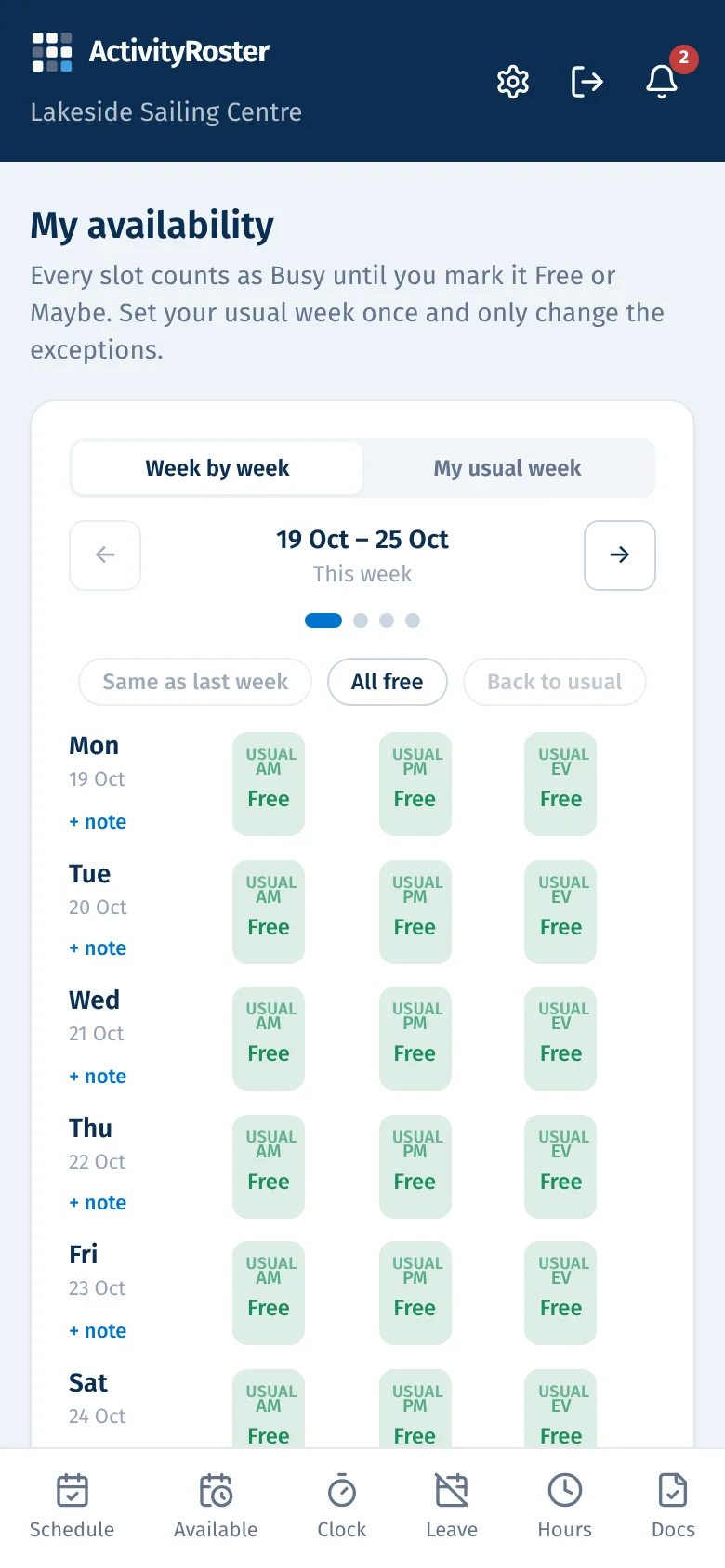
Screens from a made-up centre. Click any screen to see it full size.
Instructors answer from their own app: Free, Maybe or Busy for each Morning/Afternoon/Evening slot. There is no blank: inside your availability window a slot counts as Busy until it's marked Free or Maybe, so nobody is rostered on a guess.
Assigning and moving people from the sheet
- Click a Free cell and the panel lists the sessions in that slot the person could cover, with only the roles each course needs (open places first). If they are already on something in that slot it says so at the top; “Move here” takes them off it (that day only on a multi-day course) and onto the course you pick, or “Add as well” keeps both. After a move the panel refreshes, so the session they are now on shows at the top straight away.
- The sheet and the roster board read the same week, so who is on what, and which places are still open, always match between the two.
- Click a person's name to see everything they are on this week, with a Change link beside each.
The usual week and day notes
- Each instructor can set a usual week once (say, Free every Saturday and Sunday). It fills in any day they haven't answered, and they only change the exceptions.
- They can leave a short note against a day (“back by 2pm”), which the office sees in the grid.
- Approved leave is written into availability as Busy automatically.
The availability sheet
- The office sees a grid of everyone's availability for the week, with a count of how many are free in each slot. Grey Busy means they haven't answered; “usual” means it came from their usual week.
- A switch at the top picks what clicking does. Assign staff (the default): click a free slot to see the sessions that person can do then, and assign them. Nothing in the grid changes by accident.
- Edit availability: change who's free, recorded as set by the office (ideal for volunteers who don't use the app).
- A navy dot shows where someone is already rostered, so you can see availability and commitments together. Beside each name is the number of hours they are rostered that week.
The availability window
Settings → General sets how many weeks ahead instructors are asked (4 by default, up to 26). Beyond the window nobody has been asked yet, so nothing blocks rostering there; the roster and the availability sheet show a note with a link to lengthen it.
Editing availability: two ways
- A whole week or day at once: in Edit availability, click a person's name to set their whole week, a day heading to set everyone that day, or AM / PM / EV to set everyone in that slot, then pick Free, Maybe or Busy. “Everyone, this whole week…” sets every active person (it asks first).
- Slot by slot: pick Free, Maybe, Busy or Clear, then click or drag across slots to paint them. Each stroke saves in one go. Press “stop painting” when you're done.
- With nothing picked, clicking one slot opens it so you can set just that slot.
- Approved leave is never overwritten: those slots stay Busy.
Tip: The number under each slot tells you how many instructors are free then — handy before you start assigning. Running availability from the office, with no staff sign-up? See “Run it from the office”.
Start my free monthEvery centre gets the whole platform — explore each topic to see what's included.