The instructor app
ActivityRoster for iPhone and Android — your roster, hours and certs in your pocket.
What it looks like
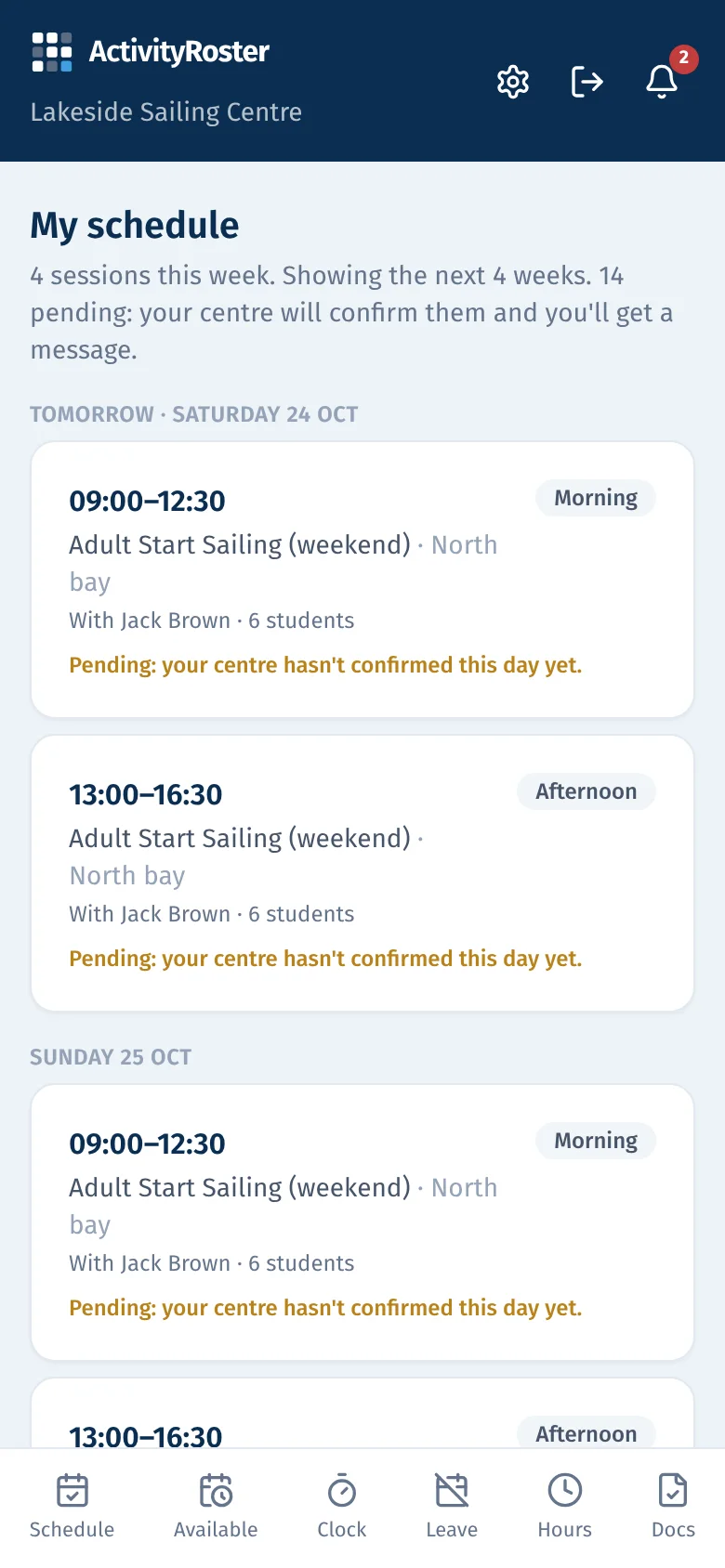
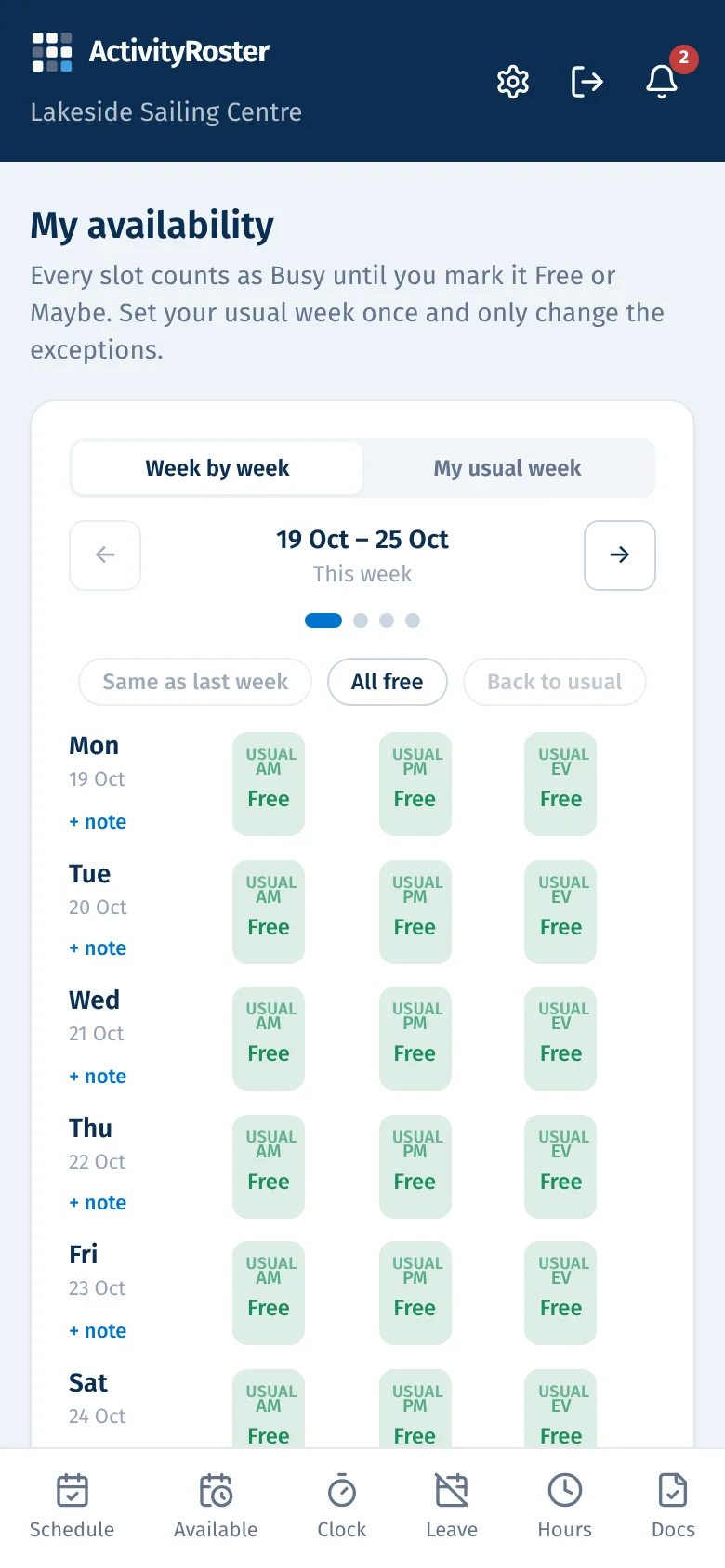
Screens from a made-up centre. Click any screen to see it full size.
Delete my account is under Settings in the app. Enter your PIN and it happens straight away: your login, devices and notifications go, and every centre you belong to loses your profile, certificates, checks, availability and documents. Past roster and pay records stay under “Former staff member”, because centres must keep working-time and pay records for the statutory period. If you own a centre, hand it to another admin or close it first.
Creating an account in the app takes four fields (name, email, password with a Show button, and an optional mobile number), a 6-digit code from your email, then one screen that joins your centre and sets your 4-digit PIN. My hours is grouped by day with the day's total and one Approved or Pending label; Leave has Tomorrow, This weekend and Next week buttons above the dates. After an update, a one-line notice on first open says the app has changed.
Instructors and volunteers use the free ActivityRoster app for iPhone and Android (Google Play). Everything in the instructor portal is in it — schedule, availability, clock in/out, leave, hours, documents — plus phone notifications, Face ID / fingerprint unlock and a camera button for cert photos.
No signal on the beach
Each time you open My schedule with a signal, the next seven days are saved on your phone. If the schedule can't load later, you see that saved week instead, with the time it was saved. Signing out removes it from the phone. Face ID or fingerprint unlocks the app in place of typing your PIN (Settings → App), and the PIN is always there as the fallback.
Shifts in your own calendar
In the app, Settings → Calendar → “Make my calendar link”, then “Add to my calendar” (or Google Calendar). Shifts on confirmed days appear in the phone's own calendar with the course, your role, the time and the place, and update about every hour. The link is private and shown only once; “Make a new link” replaces it and the old one stops working, and “Turn off” stops it entirely. It never contains colleagues' names or contact details.
Your company code
- 1Open Settings → “Company code · instructor app”. Each centre has its own 6-character code — copy it and share it with your team (a notice board, a WhatsApp group, your welcome email).
- 2If a code leaks, press “Issue a new code”. The old one stops working immediately; people already joined are unaffected.
How an instructor joins
- 1Install the app and tap “Create your account”: name, email and a password. A mobile number is optional.
- 2Enter the 6-digit code we email them to confirm the address, then choose a 4-digit PIN.
- 3If their email is already on your Instructors list, the app simply shows your centre's name for them to tap: no code to type, they're in straight away. Anyone else types in your company code and appears under Instructors → Join requests for you to approve or decline — so a leaked code never lets a stranger in.
- 4Works for more than one centre? They join each with its code and switch between them in the app's Settings.
What the app adds
- Phone notifications for roster changes, new open shifts, leave decisions and expiring certs. The app asks them to turn these on the first time they open it and keeps a reminder at the top until they do; anyone who said no on the phone's own box is shown how to switch it back on in the phone's Settings. On the Instructors page, “Phone alerts off” next to a name means they're in the app without them.
- Your shifts, with the course, colleagues on it, student numbers and the location on each card. Your centre chooses when they appear: by default as soon as you're put on a shift, marked Pending until the office confirms the day; or, if the centre switches off “Let staff see their shifts before you confirm the day” (Settings → General → Checks when rostering), only once the day is confirmed. If your centre asks you to accept shifts: one-tap “I'll be there”, or “Can't make it” with a reason so the office can find cover.
- Availability has “Same as last week”, “All free” and “Clear week” so a regular pattern takes two taps.
- Settings: update your name and (optionally) your mobile number, change your PIN, and set or change your password. Delete my account (at the foot of Settings) asks for your account and personal data to be deleted. Docs has a Replace button for a renewed cert.
- Face ID / fingerprint instead of typing the PIN every time; the PIN stays as the fallback.
- Clock in and out records an approximate location — shown as a 📍 map link on your Time clock page.
- A camera button on Documents to photograph a certificate straight into their record.